IMAGE3D · WORKFLOW GUIDE
AI Texturing and PBR: Inspect and Test Materials on Your Generated Model
Repeat the tile across a larger surface, inspect its joins and scale, then test the base color, normal, roughness and ambient-occlusion maps in your destination renderer. A seamless image can improve a material, but it does not fix UVs, add geometry or automatically retexture a GLB.
Updated November 4, 2026
What Image3D does today
Image3D can generate a textured model from an image. This is not an upload-any-mesh retexturing tool: the current Studio does not expose a standalone workflow for painting your existing mesh with a prompt. Choose a supported generation option in Studio, then inspect the delivered file.
How do I test a seamless material tile?
- Preview at least a 4 × 4 repeat. Look for a bright edge, repeated stain, knot or seam that becomes obvious from the camera distance used in the final scene.
- Check the model's UV layout. A perfect tile still stretches on overlapping, distorted or inconsistently scaled UV islands.
- Set a real-world scale. Bricks, cloth weave and wood grain should be sized for the object rather than enlarged until the image looks sharp.
- Load the maps in the target renderer, rotate the light and compare the silhouette. Normal and height maps can change shading; they do not create dependable mesh detail at the outline.
What each material map can and cannot prove
| Map | Useful check | Does not prove |
|---|---|---|
| Base color | Edges repeat without a visible color jump. | Correct roughness, depth or UV scale. |
| Normal | Small lighting detail faces the intended direction. | New geometry or a printable raised surface. |
| Roughness | Matte and glossy regions react consistently under moving light. | That highlights will match every engine. |
| Ambient occlusion | Creases receive restrained contact shading. | Physically accurate cavities or baked scene lighting. |
| Height | The light-to-dark direction matches the intended relief. | Safe displacement without checking mesh density and settings. |
WaveSpeed's Seamless Texture Maker documents an in-browser workflow that exports a tile plus height, normal, roughness and ambient-occlusion maps and offers a repeated preview. This guide refers to that documented workflow as a comparison, not as a tested result.
Read the surface correctly
Base color describes surface color. Roughness changes how broad or sharp highlights appear; metallic changes the material's response to light. Normal maps can suggest small surface detail without adding the corresponding silhouette. A material may use constant values rather than a separate image for every channel. Inspect the actual file before promising a texture set to another artist.
A practical GLB handoff
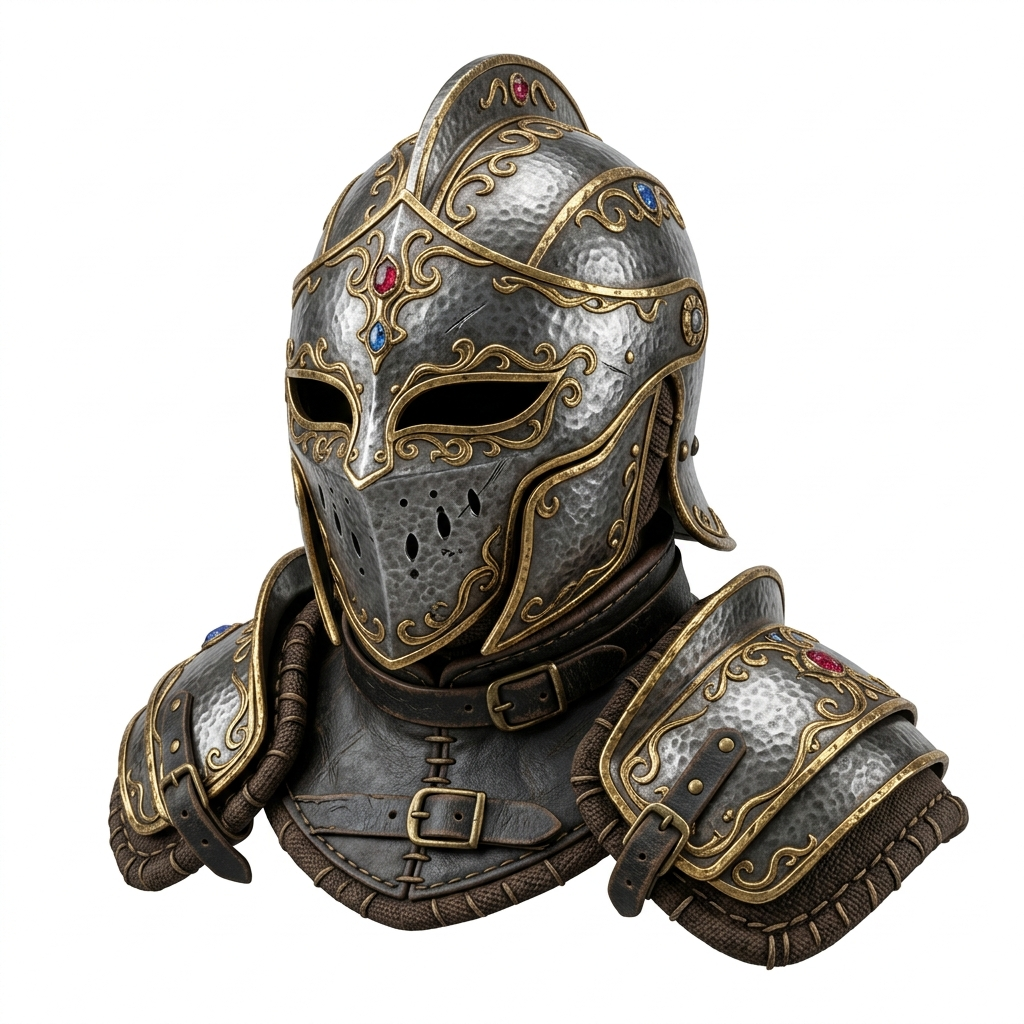
- Download the generated GLB using the rights and credits shown in Studio. The example above is a demonstration, not a promise that every input produces the same result.
- Open the file in a viewer, rotate it and check whether the underside and back have usable color. Compare silhouettes against the reference.
- Import the GLB into your editor. Check its materials and UV layout. Preserve an untouched copy before replacing shaders.
- Test in the destination renderer. Lighting and material support can change the appearance; inspect there before publishing a product page or committing an asset to a game.
Why STL looks grey
STL is a geometry handoff. Our GLB to STL converter exports triangle geometry and does not carry the GLB's colored PBR materials into the STL. If your goal is a colored web preview, keep GLB. If your goal is printing, inspect real mesh detail rather than relying on a painted effect.
Does a more expensive model always look better?
No. Compare the same reference using the examples in the new model collection. Judge the detail that matters to your job. Model access and per-generation credit cost are separate decisions; a specific preview is not a guarantee across every subject.
For the file handoff details, see Blender’s glTF documentation. Compare the broader tool landscape in the sourced AI 3D model generator list, or continue with an FBX handoff guide when another application specifically requires FBX.
Continue with your model
Choose a real next step: generate a starting mesh, inspect a file, or download a source-credited example.
Open Image3D Studio · File conversion tools · Download examples