Image to STL Generator
Turn one clear image into a 3D mesh, preview the result in the browser, then unlock STL export for Cura, PrusaSlicer, Bambu Studio, or OrcaSlicer checks.
Free
Standard preview
$9.99
Maker one-time
1,000
credits + Pro
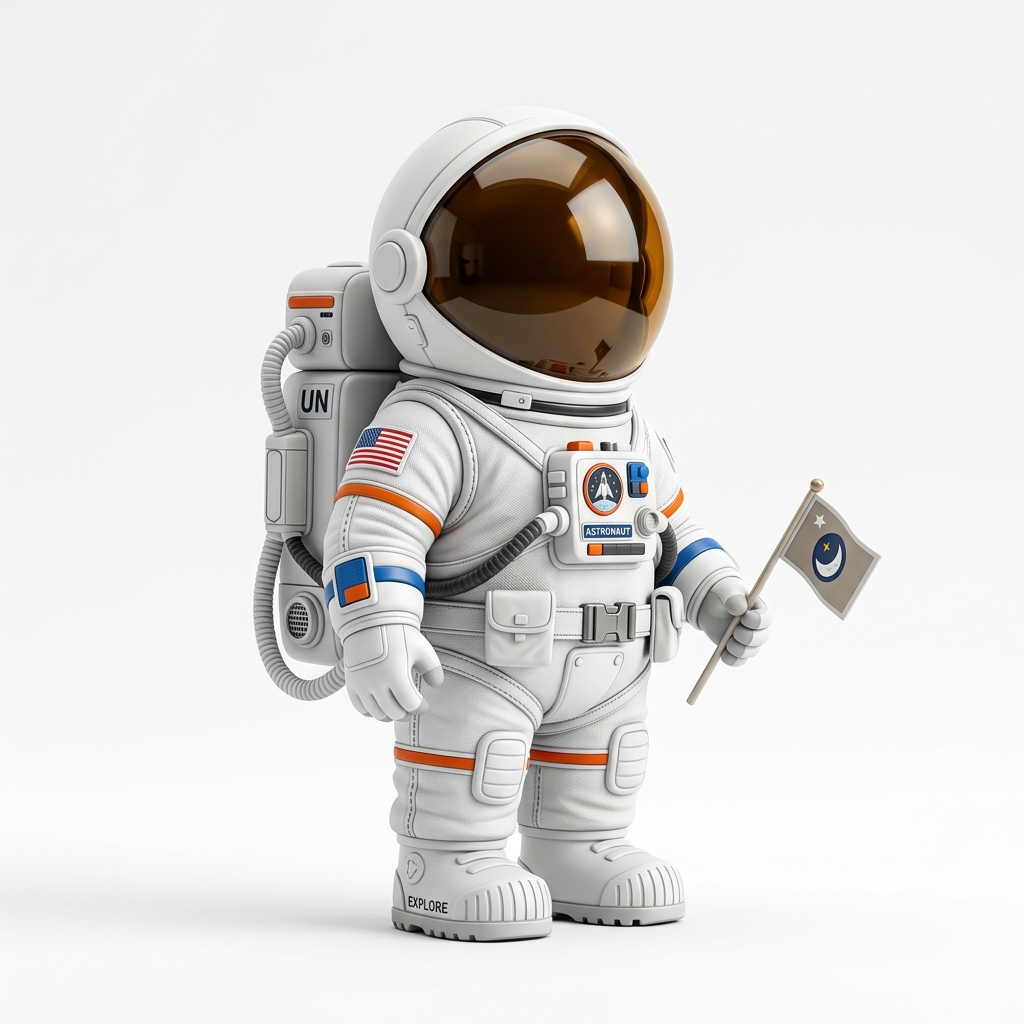 Input image
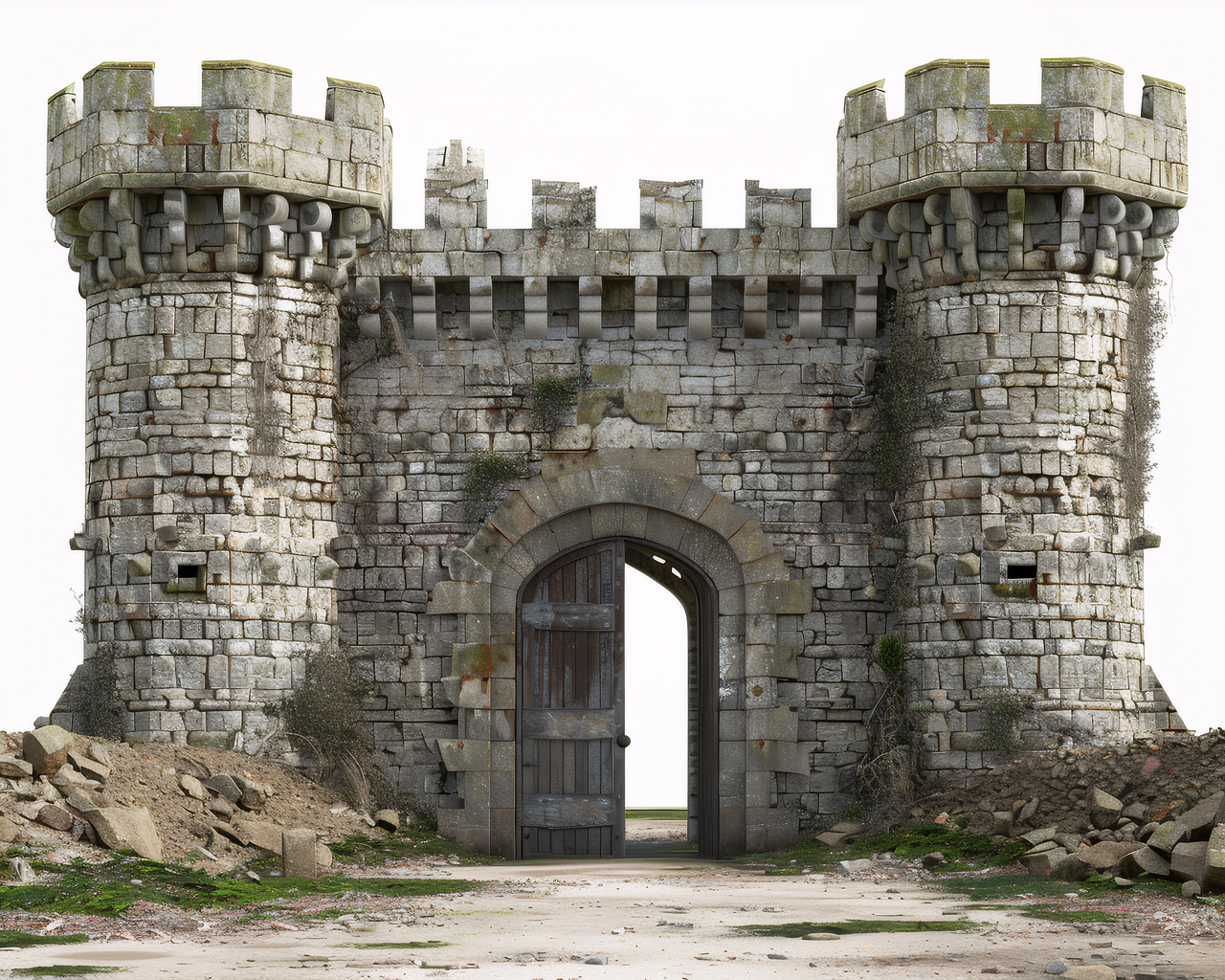
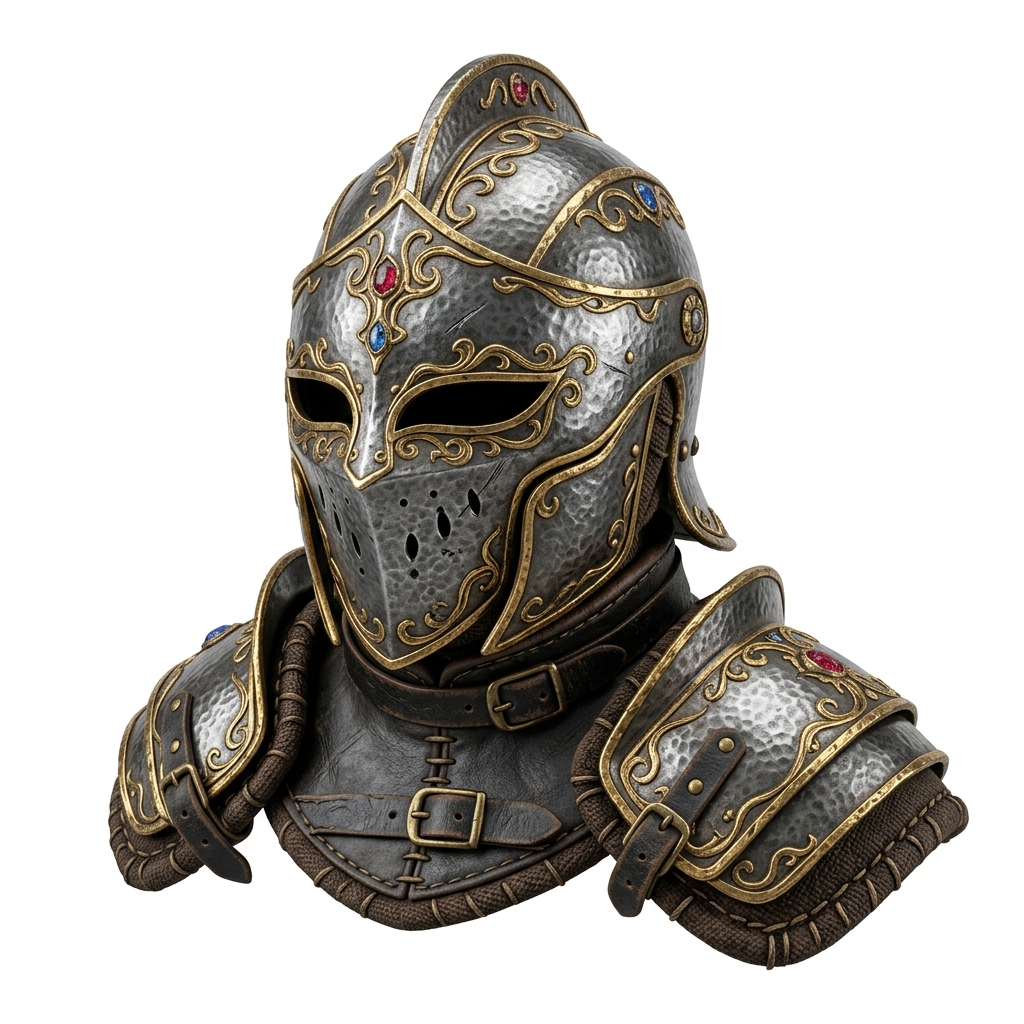
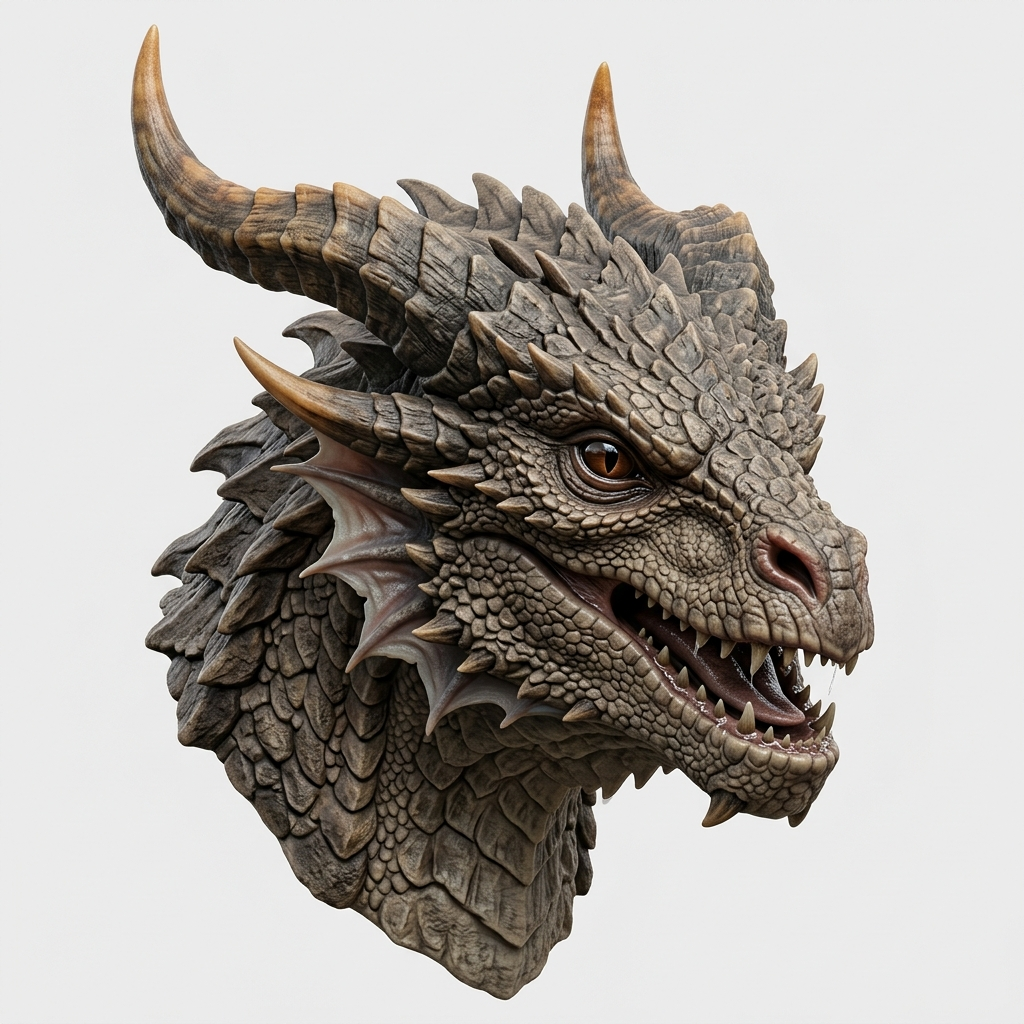
More real examples
See several image-to-STL results before you scroll.
Direct answer
Can AI turn a picture into an STL file for 3D printing?
Yes. Image3D can turn a picture, concept image, or AI-generated image into a 3D mesh, then export that model as an STL file for 3D printing. Use a clear single-subject image, generate the mesh, export STL at the target size, and inspect the result in Cura, PrusaSlicer, Bambu Studio, or another slicer before printing.
Best for
Figurines, badges, props, tabletop terrain, product forms, and first-pass print-check ideas.
Check before printing
Scale, wall thickness, disconnected islands, supports, orientation, and slicer layer preview.
Related workflows
3D print from image, STL checklist, and print check cleanup.
Before you upload
Pick the right path before spending credits.
Use this quick check to decide whether to start with a free Standard preview, prep the image first, or go straight to the export/pricing path.
Good first test
Single object, clean silhouette, simple background, visible front or three-quarter form. Start with Standard and inspect the shape.
Prep before retry
Portraits, tiny text, busy scenes, and multiple objects usually need cropping, a cleaner source image, Pro, or manual cleanup.
Ready to export
Preview is free to test with credits. STL, GLB, OBJ, and PLY downloads unlock with a paid credit pack or plan.
Images that work best
Images that usually convert better
Single object
One clear subject, not a crowded scene.
Clean silhouette
Visible front or three-quarter shape.
Simple background
Less background noise for the AI to guess around.
Images that may need cleanup
Images that need caution
Human portraits and side-view faces are experimental. Standard can distort faces or full-body poses; Pro, Ultra, or manual cleanup is safer for figurines.
Blurry, tiny, or text-heavy images often create thin parts, missing details, or noisy geometry that slicers may repair poorly.
Multiple objects or busy scenes can split into islands. Crop to the main object before generating STL.
How Image to STL Export Works
Upload Image
Drag any photo, AI render, or sketch into the Studio. PNG and JPG up to 20 MB.
AI Generates 3D
Choose Standard, Pro, or Ultra and click Generate. Standard previews usually finish in about a minute; higher-detail retries can take longer.
Export STL
Click Export STL, set your print size in mm, and download. Open the file in Cura, PrusaSlicer, or Bambu Studio before printing.
What Is an Image to STL Generator?
An image to STL generator uses artificial intelligence to transform a 2D image into a three-dimensional mesh, then lets you export that mesh as an STL file. STL (Standard Tessellation Language) is the universal format for 3D printing workflows — every slicer on the market reads it, from Cura and PrusaSlicer to Bambu Studio and OrcaSlicer.
Image3D's approach works in two stages. First, the AI analyzes your image, estimates depth and surface geometry, and builds a complete 3D model. Second, a browser-side exporter converts that model into a binary STL file with your chosen print dimensions. AI meshes can still have thin parts, floating details, or slicer warnings, so the exported STL should be checked before printing.
This workflow is especially useful for 3D printing hobbyists who want to turn reference photos into custom prints, product designers prototyping from concept images, tabletop gamers creating custom terrain and miniatures, and Etsy sellers who want to turn AI art into physical products.
Best Images for STL Model Checks
Not every image converts equally well to a 3D print. For the best results, use images with a single, clearly defined subject against a simple background. The AI needs to distinguish the object from its surroundings to reconstruct geometry accurately.
Good inputs: product photos on white backgrounds, character art with clear silhouettes, figurine concepts, vehicle renders, architectural models, and AI-generated images from Midjourney, DALL-E, Flux, or Stable Diffusion.
Avoid: flat patterns or textures, heavily occluded scenes with many overlapping objects, images where the subject blends into the background, very low-resolution or blurry photos, and side-view human portraits.
Portrait / figurine warning: human faces, side portraits, celebrity photos, and full-body figurines are harder than simple objects. Standard can distort faces or body pose. For people, use a clean front-facing or 3/4 image with a simple background, and treat Pro / Ultra or cleanup help as the safer path.
Use Cases for 3D Printing
Custom Figurines
Turn character art or toy photos into figurine drafts, then check scale, supports, and fragile parts in a slicer.
Product Prototypes
Convert concept renders into physical prototypes. Iterate on form factor before committing to production tooling.
Tabletop Terrain
Generate castles, ruins, and structures from concept art for D&D, Warhammer, and other tabletop games.
Etsy & Print-on-Demand
Turn AI-generated art into physical products. Create unique 3D-printed items from Midjourney or DALL-E images for your shop.
Cosplay Props
Turn weapon, armor, or helmet art into prop drafts, then inspect orientation, scale, and split parts before printing.
Slicer Compatibility
The exported STL files open in every major 3D printing slicer. Inspect scale, walls, floating islands, and supports before starting a print.
Detail Levels for 3D Printing
| Level | Credits | Speed | Detail | Best For |
|---|---|---|---|---|
| Standard | 10 | ~1 min | Low poly | Quick previews, test prints |
| Pro | 100 | ~2 min | Medium | Prototyping, test fits |
| Ultra | 350 | ~2-3 min | High (up to 1M faces) | Final prints, fine detail |
Recommended path: use Standard to check the shape, use Pro when the first result is close, and reserve Ultra for high-value final-detail workflows. Higher quality does not guarantee a print-ready STL; slicer inspection still matters.
Export path
Preview first, then unlock STL export when the result is worth keeping.
Image3D lets you test the shape before paying for export. Use free Standard credits to see whether the input works. If the result is useful, unlock download or retry with higher quality.
Free
Standard preview
Standard preview tests. Best for checking whether the image can become a usable 3D shape.
$9.99 Maker · one-time
Downloads + Pro
1,000 credits, Pro access, and STL, GLB, OBJ, or PLY downloads. Ultra is reserved for Creator and Power.
$9.99 Maker
Use Pro
1,000 credits and Pro use for stronger attempts before STL export and slicer checks.
STL vs GLB vs OBJ
| Format | Textures | 3D Printing | Best Use |
|---|---|---|---|
| STL | No (geometry only) | Universal | 3D printing, slicers |
| GLB | Yes (PBR materials) | With conversion | Web 3D, games, AR |
| OBJ | Separate MTL file | Supported | Blender, Unity, legacy tools |
Image3D exports all three formats. For 3D printing, STL is the standard choice.
Need the STL cleaned up before printing?
AI-generated meshes can still need repair, scale checks, or slicer cleanup. If you like the generated result but need it closer to a print-check-ready STL, ask about a Printable Model Fix.
Basic repair
Check common STL mesh problems before slicing.
Scale review
Review target size and print orientation.
One revision
For models that are close but need cleanup.
Printable Model Fix
$79
For cleanup and printability review. Not a custom CAD or sculpting service.
construction Ask about a fixFrequently Asked Questions
How does Image3D convert an image to an STL file?
expand_more
Which 3D printing slicers work with the exported STL?
expand_more
What kind of images produce the best 3D prints?
expand_more
Can I set the print size before exporting?
expand_more
Is the Image to STL Generator free?
expand_more
Which detail level is best for 3D printing?
expand_more
Related Tools
3D Print from Image
Follow the full image-to-STL-to-slicer workflow for physical prints.
Image to GLB Generator
Generate textured GLB files for web 3D, AR previews, and product demos.
Image to OBJ Generator
Choose OBJ for editable geometry, material files, and 3D tool handoff.
Printable Model Fix
Get human cleanup guidance when a generated STL is close but fragile.
More ways to convert images to STL
Ready to Check Your STL?
Upload an image and inspect a free Standard browser preview. STL downloads require Maker or another paid plan; no software installation is needed.
upload_file Upload Image & Generate STL