AI 3D game assets from images: a draft-to-engine workflow
Turn concept art, product shots or AI-generated images into a first-pass 3D game-asset draft, then decide which candidate deserves cleanup for Unity, Unreal, Blender or another target workflow.
Updated July 24, 2026 · Game-asset boundaries and engine handoffs checked
Direct answer
AI image-to-3D is useful for game-asset ideation when the output stays a draft: define the asset's job, generate and rotate the mesh, choose GLB or OBJ for the real handoff, then add the topology, collision, LOD, material and engine validation that the project requires.
How to make a game-asset draft from concept art
The realistic indie workflow is concept art to AI 3D draft, then cleanup before calling the asset game-ready. Upload a clean concept image to Image3D, generate a GLB or OBJ candidate, rotate it from every angle, then check silhouette, mesh density, materials, collision, scale and engine import in Blender, Unity or Unreal Engine.
Props, statues, creatures, collectibles, and visual prototypes.
Retopology, material cleanup, polygon reduction, collision, and LODs.
Test import, scale, lighting, and performance before production use.
What AI game assets are good for
AI-generated 3D assets are strongest when speed matters more than perfect topology. They are useful for prop ideas, collectible objects, environment accents, statues, tabletop pieces, creature busts, UI turntables, greybox replacements and visual prototypes. They are weaker when you need exact rigging topology, modular hard-surface kits, strict poly budgets or final character animation.
That does not make the workflow useless. It changes where you place it. Use Image3D near the beginning of the pipeline, when you want to test whether a visual idea has a readable 3D form. If the draft works from multiple angles, it can move into cleanup. If it only works from the front, regenerate with a clearer image instead of trying to repair every symptom.
What “game-ready” still requires
A model is not game-ready merely because it opens in a browser or imports once. The required work varies by project, but it can include clean topology, material assignment, collision strategy, LODs, correct scale, pivot placement, naming, texture budgets, rigging, animation and target-device performance. A static decorative prop may need a short path; a playable character needs a much more controlled one.
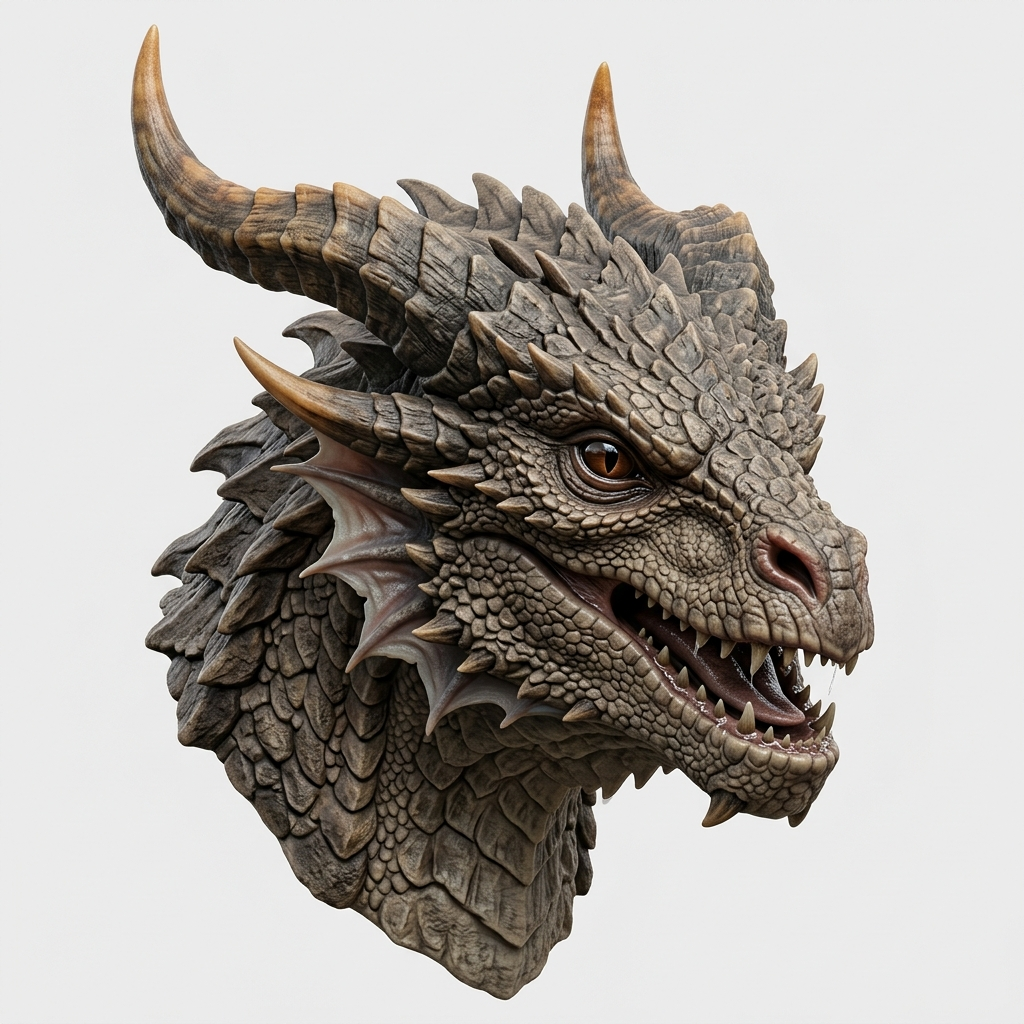
Use this page to decide where to stop. If a mesh only needs to tell the team whether a dragon, prop or collectible reads in 3D, a draft may be enough. If it needs repeatable collision, animation or a marketplace-quality asset package, move it into a DCC and an engine validation path before relying on it.
Pick the right source image
A game asset source image should have a strong silhouette, one main object, and enough visible volume. Three-quarter views usually work better than straight front views because the model has more shape cues. Avoid tiny repeated details when the asset will be seen from a distance, because those details may become noisy geometry rather than useful form.
For props, use clean object renders. For creatures, use busts or statues before trying full characters. For icons, badges or loot items, decide whether the result needs a GLB preview, an OBJ editing file or an STL candidate for a separate physical test. Do not expect the export choice to repair missing geometry.
Game engine evaluation checklist
After generation, rotate the model in Image3D and look for missing backs, melted edges, floating parts and overly dense surfaces. Export GLB for a compatible visual engine route or OBJ for mesh cleanup. In Unity or Unreal, check real scale, lighting response, import warnings, texture size, collision and whether the model still reads correctly from the camera distance used in the game.
If the asset needs to appear many times, do not skip optimization. Reduce triangles, simplify materials and consider LODs. If the asset is a hero object, spend the extra time in Blender or another DCC tool to fix topology and material separation. The Unity and Unreal guides below cover their engine-specific handoff distinctions.
Standard, Pro, and Ultra expectations
Standard is best for cheap exploration. It answers whether the image can become a useful shape. Pro is the next step only when a draft already looks promising and the asset has a real downstream job. Reserve the highest-detail option for complex or high-value assets where extra detail is worth both the cost and the cleanup time.
The healthy workflow is not to generate everything at the highest tier. Generate the minimum number of drafts needed to answer the silhouette question, choose the strongest candidate, then spend more only after the asset has a defined use case.
Good fit
Props, creature busts, statues, product-like objects, collectibles, and visual prototypes.
Needs cleanup
Rigged characters, modular kits, exact hard-surface parts, and assets with strict poly budgets.
Practical checklist
- Name the asset's actual job: visual prototype, prop, environment detail or character.
- Check the model from front, side, back and top.
- Export GLB only for a known compatible visual import route.
- Use OBJ when mesh cleanup or DCC conversion is likely.
- Set target camera distance before judging detail.
- Create collision separately and deliberately.
- Optimize triangles and textures before using many copies.
- Test the exact Unity or Unreal project rather than inferring game readiness from a preview.
Engine handoff references
- Unity workflow: decide the project's GLB/glTF or DCC handoff before export, then verify import and collision choices in Unity.
- Unreal Engine workflow: use the engine's documented GLB/glTF or established DCC/FBX route, then create collision and LODs deliberately.
- Unreal's glTF import documentation is an example of why an import-capable file is still not a full engine asset contract.
Related Image3D pages
- Generate a game asset draft
- Unity workflow
- Unreal Engine workflow
- Blender cleanup workflow
- Image to GLB generator
- GLB vs OBJ vs STL
- Best AI 3D model generators
FAQ
Can AI generate finished game assets?
Treat an AI-generated mesh as a draft unless the project has separately completed topology, materials, collision, LOD, rigging and engine validation. Simple props may need less work than animated characters.
Which export is best for game assets?
Use GLB for a compact visual handoff to a working glTF-compatible route. Use OBJ when the asset needs DCC cleanup or conversion before it reaches the engine.
Can I use AI 3D models in Unity or Unreal?
Yes, as a first mesh. Test import, materials, scale, collision and performance in the target engine before using it in a production scene.
Should I use Standard, Pro, or Ultra?
Use the lowest-cost generation that answers the silhouette question first. Spend more only after the draft has a clear downstream job and the source image supports that detail.
Do AI models need LODs?
If an asset appears many times, targets mobile or WebGL, or must fit a tight performance budget, plan on simplification and LOD work separately.
Does a browser preview prove an asset is game-ready?
No. A browser preview is a visual inspection checkpoint. Game readiness needs the specific engine, camera distance, materials, collision, optimization and platform testing.